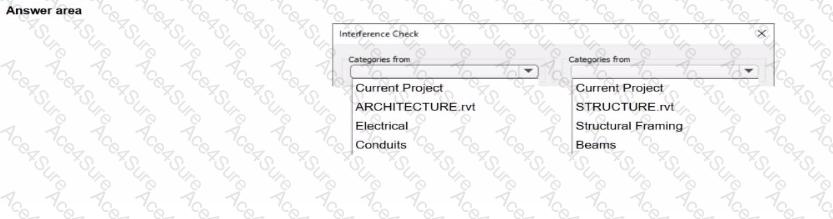
In Autodesk Revit Electrical Design, the Interference Check tool allows designers to detect physical conflicts between elements in the current model and linked models, ensuring coordination between architectural, structural, and MEP systems.
According to the Revit MEP User’s Guide (Chapter 45 “Interference Checking”):
“You can check for interferences between elements within a single project or between elements in the host project and linked models. In the Interference Check dialog box, you can specify categories from the current project and from linked Revit models.”
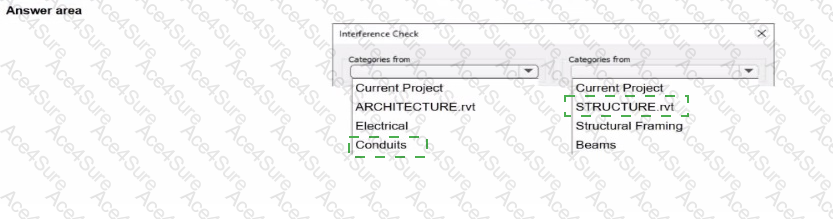
The dialog box shown in the image displays two selection lists:
The left-hand side represents categories from the current electrical project.
The right-hand side represents categories from the linked structural model (STRUCTURE.rvt).
Since the task is to check for clashes between conduits (electrical) and beams (structural), the designer should select:
“Conduits” under Categories from Current Project (the electrical model).
“Beams” under Categories from STRUCTURE.rvt (the linked structural model).
As the guide explains further:
“Interference checking identifies intersections or overlaps between the geometry of selected categories. For MEP users, this is commonly used to check for clashes between ducts, pipes, or conduits and architectural or structural elements.”
This process ensures early detection of coordination issues before construction documentation. The designer can then review results through Coordination Review, isolate elements in 3D, or tag affected areas for correction.
Incorrect Options:
Selecting both categories from the same model (e.g., Electrical and Conduits) would only check within that model.
Choosing unrelated linked files (e.g., ARCHITECTURE.rvt) would not detect clashes with the structural beams.
[References:, Autodesk Revit MEP User’s Guide – Chapter 45 “Interference Checking,” pp. 1070–1076, Smithsonian Facilities Revit Template User’s Guide – Section 3.4 “Coordination and Interference Checks,” p. 86, Autodesk Revit Electrical Design Essentials – Coordination and Clash Detection Section, ]