Based on the Microsoft SC-300: Identity and Access Administrator Official Study Guide and Microsoft Learn module “Manage access reviews in Azure AD”, when creating an access review with the setting Reviewers: Members (self), each user who is a member of the target group is only allowed to review their own access, not the access of others.
Here’s how the logic applies in this scenario:
The scope of the access review is set to Everyone, meaning both internal members and external (guest) users within Group1 will be included in the review.
The reviewers option is configured as Members (self) — this setting instructs Azure AD to send review tasks to each user so they can attest to their own need for continued group membership.
Therefore, User3 (a Guest user) will receive the review task to confirm or deny their own access to Group1.
User1 and User2, though they are members and User1 is the group owner, will not review User3’s access because “Members (self)” does not delegate review authority to other members or owners — it only applies to individual self-assessment.
Microsoft documentation explicitly clarifies:
“When you select Members (self) as the reviewer type, each user reviews only their own access. Owners or administrators do not approve or deny access on their behalf.”
Hence, in this scenario, only User3 can perform the access review for their own membership in Group1.
QUESTIONNO: 5 HOTSPOT
You have an Azure Active Directory (Azure AD) tenant that contains Azure AD Privileged Identity Management (PIM) role settings for the User administrator role as shown in the following exhibit.
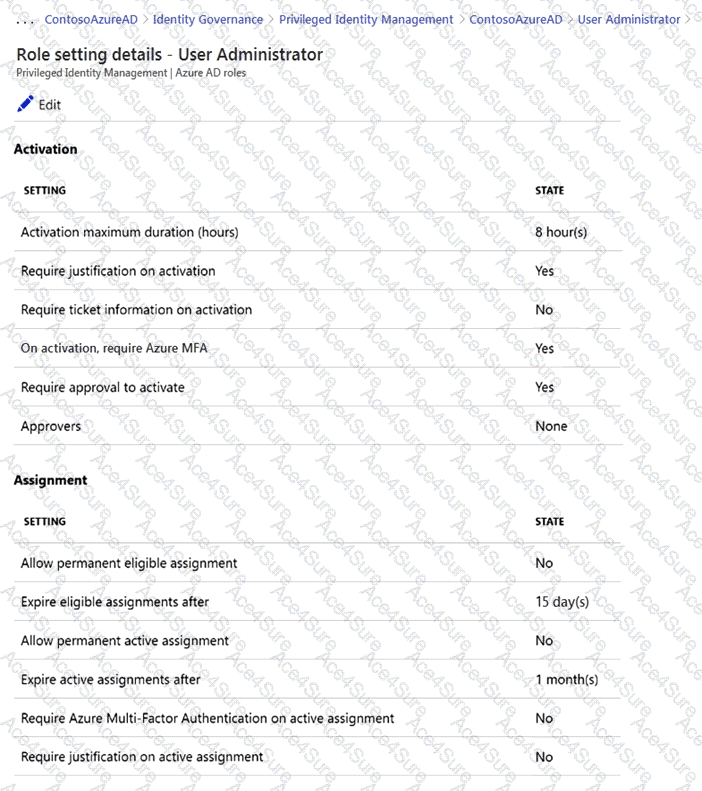
Use the drop-down menus to select the answer choice that completes each statement based on the information presented in the graphic.
NOTE:Each correct selection is worth one point.

Answer:
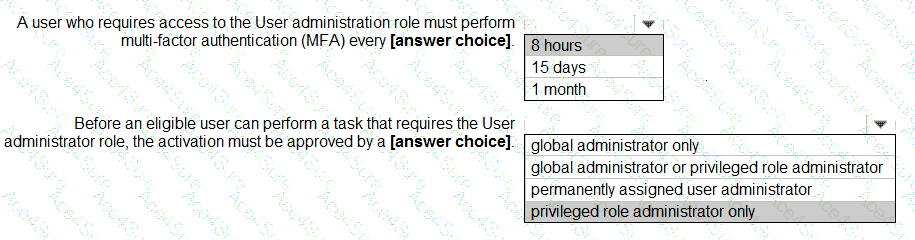
In Azure AD Privileged Identity Management (PIM), MFA can be enforced at role activation. The setting “On activation, require Azure MFA: Yes” means a user must complete MFA each time they activate the role. Because the “Activation maximum duration (hours)” is 8 hours, any user who needs the User Administrator role beyond that window must re-activate the role and therefore perform MFA again. The study guide explains: “Requiring MFA on activation ensures strong verification at the moment privileges are elevated.” It also states: “Activation maximum duration controls how long the user holds the role before needing to re-activate.”
For approvals, the role settings show “Require approval to activate: Yes” and “Approvers: None.” PIM behavior for Azure AD roles is that “if no approver list is configured for a role, activation requests are routed to Privileged Role Administrators and Global Administrators.” The exam materials emphasize: “Privileged Role Administrator manages role settings, including approval workflows, and can approve eligible activations; Global Administrator also has approval capability when no explicit approvers are defined.”
Therefore, the correct selections are 8 hours for MFA (per activation window) and global administrator or privileged role administrator as the approver when none are explicitly assigned.
QUESTIONNO: 6 HOTSPOT
You have an Azure Active Directory (Azure AD) tenant named contoso.com that contains a user named User1.
User1 has the devices shown in the following table.
On November 5, 2020, you create and enforce terms of use in contoso.com that has the following settings:
Name: Terms1
Display name: Contoso terms of use
Require users to expand the terms of use: On
Require users to consent on every device: On
Expire consents: On
Expire starting on: December 10, 2020
Frequency: Monthly
On November 15, 2020, User1 accepts Terms1 on Device3.
For each of the following statements, select Yes if the statement is true. Otherwise, select No.
NOTE:Each correct selection is worth one point.
Answer: Device1 on Nov 16, 2020: Yes
Device3 on Dec 15, 2020: Yes
Device3 on Nov 20, 2020: No
According to Microsoft’s official documentation and SC-300: Identity and Access Administrator Study Guide (Identity Governance and Compliance section), Terms of Use (ToU) in Azure Active Directory are managed under Conditional Access policies and enforce user acknowledgment before granting access to resources.
Key configuration settings from the scenario:
Require users to expand the terms of use: On → Users must open the document before accepting.
Require users to consent on every device: On → Each device requires a separate acceptance (consent stored per device).
Expire consents: On
Expire starting on: December 10, 2020
Frequency: Monthly → Users must reaccept terms every month after initial consent.
Given that:
Terms1 was created on November 5, 2020.
User1 accepted the terms on November 15, 2020 on Device3 only.
Acceptance is per device, meaning Device1 and Device2 do not yet have acceptance recorded.
Therefore:
On November 16, 2020 (next day), when User1 signs in from Device1, they must accept Terms1 → Yes.
The terms expire monthly starting December 10, 2020, so by December 15, 2020, User1 must reaccept the terms on Device3 → Yes.
November 20, 2020 is still within the same month of initial acceptance (November 15), and terms have not expired yet → No, reacceptance is not required that soon.
This aligns with Microsoft documentation excerpt:
“When ‘Require users to consent on every device’ is enabled, each unique device sign-in requires separate consent. When expiration is configured, users must reaccept terms based on the defined frequency starting from the specified date.”