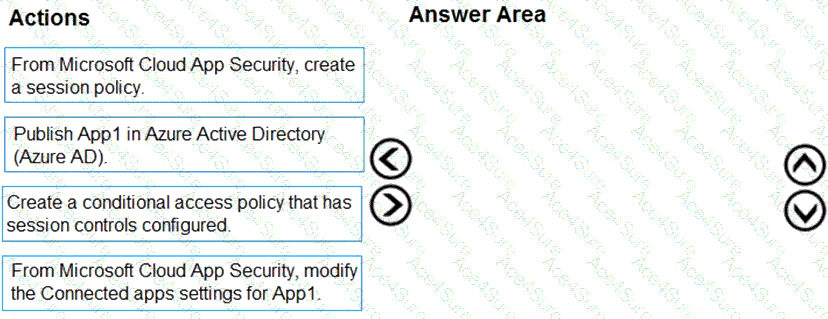
According to the Microsoft SC-300: Microsoft Identity and Access Administrator Study Guide and official Microsoft Defender for Cloud Apps documentation (formerly Microsoft Cloud App Security, or MCAS), enabling real-time session-level monitoring—known as session control—requires a structured integration between Azure AD Conditional Access and Microsoft Cloud App Security (MCAS).
Here’s the correct sequence and rationale:
Publish App1 in Azure ADThe app must first be registered or published in Azure Active Directory so that it can participate in Conditional Access and App Control integration. Without Azure AD integration, Cloud App Security cannot monitor or enforce policies on the app’s traffic.
Create a Conditional Access Policy with Session ControlsIn Azure AD Conditional Access, you define the conditions (users, apps, risk levels) and set Session controls → Use Conditional Access App Control (Monitor only / Block download). This links Azure AD sign-in events to MCAS for real-time monitoring.
Modify the Connected Apps Settings in Cloud App SecurityIn Microsoft Cloud App Security, navigate to Connected apps > Conditional Access App Control apps and ensure that App1 is connected. This ensures traffic from Azure AD sign-ins can be intercepted for session-level monitoring.
Create a Session Policy in Cloud App SecurityFinally, you configure a Session Policy (e.g., monitor file downloads, block uploads, restrict copy/paste, etc.) within Cloud App Security. The session policy enforces the desired controls and visibility in real time when users interact with App1.
This order aligns with Microsoft Learn guidance:
“To monitor user sessions in real time, integrate the app with Azure AD Conditional Access, configure session control, connect the app in Microsoft Cloud App Security, and create session policies.”
✅ Final Order:
Publish App1 in Azure AD
Create a Conditional Access policy with session controls
Modify Connected apps settings for App1 in Cloud App Security
Create a Session policy in Cloud App Security