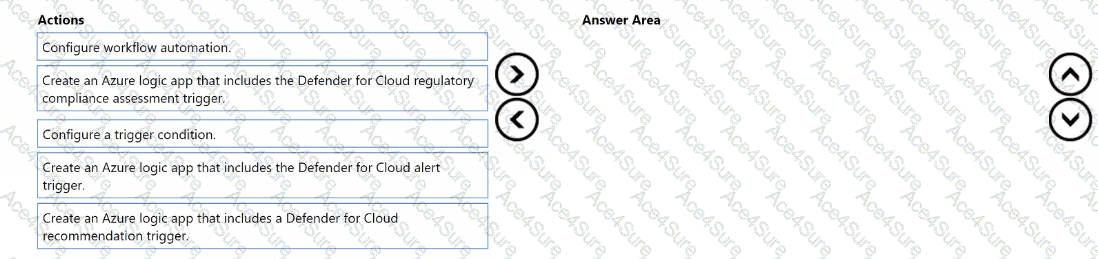
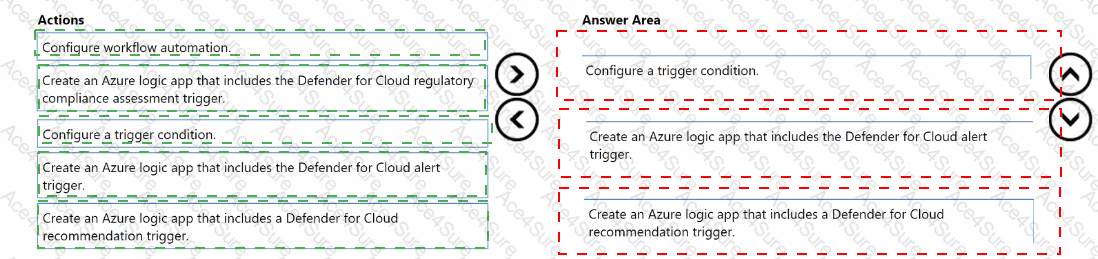
When you need to send a Microsoft Teams message (or perform any automated response) in Microsoft Defender for Cloud based on a new Microsoft Secure Score action , you must use workflow automation integrated with Azure Logic Apps .
Here’s the correct sequence of actions, step by step:
To react to new Secure Score recommendations or actions, the Logic App must use the “When a Defender for Cloud regulatory compliance assessment is created or triggered” trigger.
This ensures that the automation is initiated whenever a new Secure Score change occurs.
According to Microsoft documentation:
Step 1: Create an Azure Logic App that includes the Defender for Cloud regulatory compliance assessment trigger “To automate Secure Score or compliance actions, select the ‘Regulatory compliance assessment trigger’ in Logic Apps. It triggers workflows when a new compliance or Secure Score recommendation is created or updated.”
Next, you configure the condition that specifies which Secure Score events should trigger the workflow.
For example, you can set conditions such as:
“If the assessment type = Secure Score,” or
“If compliance status = Failed.”
This filtering ensures that only relevant events (new Secure Score actions) will activate the workflow and prevent unnecessary Teams notifications.
Step 2: Configure a trigger condition
Finally, in Defender for Cloud, you configure workflow automation to link the Logic App to the event stream.
From the Defender for Cloud portal, navigate to Workflow automation → Add automation → Choose trigger and Logic App .
Select the created Logic App as the target and define the scope (e.g., all subscriptions or resource groups).
This connects Defender for Cloud to the Logic App so that when a new Secure Score event occurs, the app automatically sends the Microsoft Teams message.
Step 3: Configure workflow automation