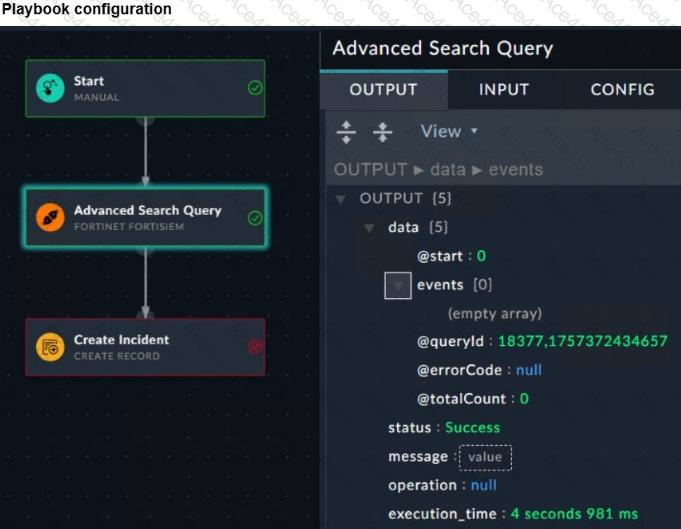
Exact Extract: “Fortinet recommends that you test a search query first in FortiSIEM to ensure that there are matching event logs. Then you can implement the same logic and time range with the connector action.”
Exact Extract: “You can define a time range, such as the last 30 days, and the maximum number of records to return in your query.”
The correct answer is A . The exhibit shows the FortiSIEM connector action completed with status: Success , but the returned events array is empty and totalCount is 0 . That means the connector did not fail; the query simply did not return matching FortiSIEM event logs. The first troubleshooting step is to run the same search directly in FortiSIEM Analytics with the same filters and time range to confirm whether matching logs actually exist.
B is wrong because saving empty output into a variable does not solve the missing results. C is not first because the connector action already shows Success , so connectivity is not the immediate problem. D is useful when mapping fields or understanding schema, but the immediate evidence points to no matching data, not unknown output structure.
Technical Deep Dive: In FortiSOAR threat-hunting playbooks, connector success only proves the API call completed. It does not prove the search logic was correct. Check the FortiSIEM query directly for event type, attribute names, time range, organization scope, and maximum result count. In this case, events: [] and totalCount: 0 are the hard clues. This is FortiSOAR-to-FortiSIEM query troubleshooting; FortiGate NP/CP offloading is irrelevant because no firewall packet-processing path is involved.