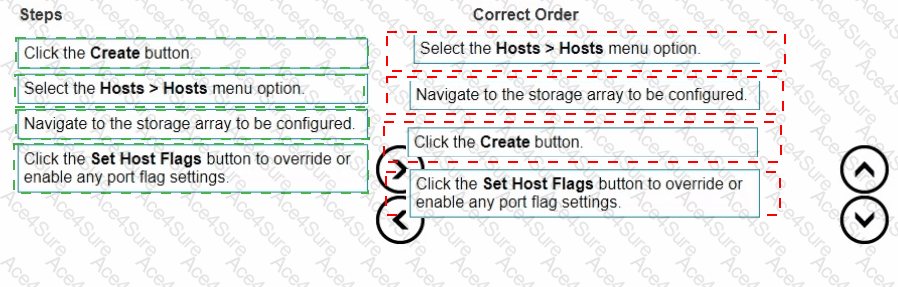
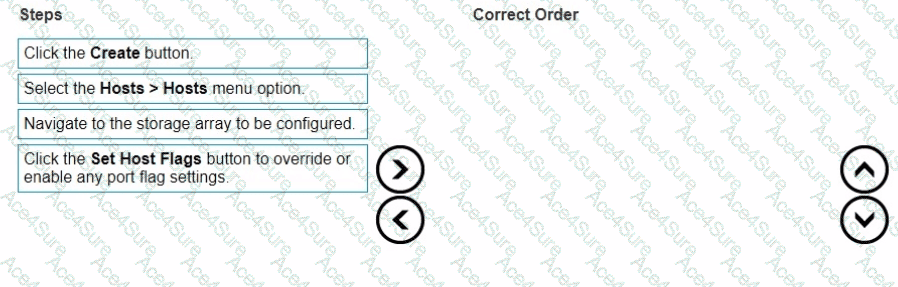
Place the steps to set Host Flags using the Create Host wizard in the correct order
The Answer Is:
Answer:
This question includes an explanation.
Explanation:
Here's the correct sequence of actions, along with explanations:
Correct Order:
Select the Hosts > Hosts menu option.
Why:This is the initial navigation step within Unisphere. You need to go to the "Hosts" section where you can manage and configure host connections to the PowerMax array.
Navigate to the storage array to be configured.
Why:In an environment with multiple PowerMax arrays, you need to select the specific array for which you want to configure host settings.
Click the Create button.
Why:This initiates the "Create Host" wizard, which will guide you through the process of adding a new host and configuring its settings, including the host flags.
Click the Set Host Flags button to override or enable any port flag settings.
Why:Within the Create Host wizard, you'll reach a point where you can configure host flags. Clicking the "Set Host Flags" button allows you to modify these flags.
Host Flags:These flags are settings that define how the PowerMax array interacts with the host. They control things like:
SCSI support:Different variations of SCSI protocols.
High availability:Features like auto-negotiation of failover.
Other host-specific behaviors.
Select the Hosts > Hosts menu option.
Navigate to the storage array to be configured.
Click the Create button.
Click the Set Host Flags button to override or enable any port flag settings.
D-PVM-OE-01 PDF/Engine
Printable Format
Value of Money
100% Pass Assurance
Verified Answers
Researched by Industry Experts
Based on Real Exams Scenarios
100% Real Questions
Get 65% Discount on All Products,
Use Coupon: "ac4s65"