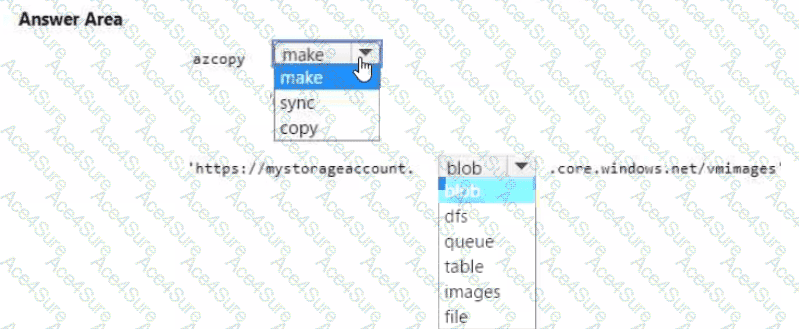
When you want to copy an on-premises virtual machine (VM) image into an Azure Storage account, you first need to create a container in your Azure Blob Storage where the image (for example, a .vhd file) will reside.
According to Microsoft Azure Storage and AzCopy documentation, the AzCopy utility is a command-line tool used to copy data to and from Azure Storage accounts efficiently. It supports blob, file, and table services.
To create a new container in Azure Blob Storage using AzCopy, you use the make command. The make command creates a new container or directory in a Blob or File storage endpoint.
The correct syntax to create a container named vmimages in a storage account named mystorageaccount is as follows:
azcopy make ' https://mystorageaccount.blob.core.windows.net/vmimages '
Explanation from Microsoft Documentation:
From Microsoft Learn – “Transfer data with AzCopy and Blob storage”, the guidance states:
“Use the azcopy make command to create a container or directory before uploading data to Azure Blob Storage.”
azcopy make — creates the container (if it doesn’t already exist).
https://mystorageaccount.blob.core.windows.net/vmimages — represents the destination URL where the container will be created.
Once created, you can then run another command such as:
azcopy copy ' C:\VMs\MyVM.vhd ' ' https://mystorageaccount.blob.core.windows.net/vmimages ' --blob-type PageBlob
to upload the VHD file.