Comprehensive Detailed Explanation along with All References available from Microsoft Azure AI Solution at the end of the explanation
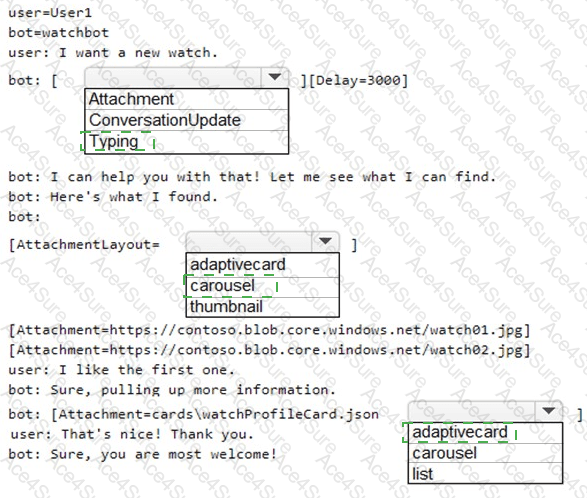
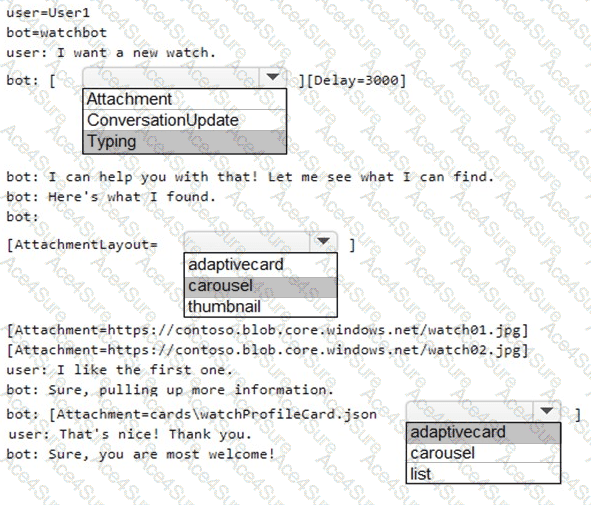
Typing: In a .chat transcript, you can simulate the bot’s typing indicator with the Typing activity, optionally followed by a [Delay=...] . This matches the intent to pause before sending the next message.
AttachmentLayout=carousel: When sending multiple attachments (the two watch images), set the layout to carousel so the Emulator displays the attachments horizontally as a card carousel.
Adaptive Card attachment: The JSON file cards\watchProfileCard.json represents an Adaptive Card; specify adaptivecard so the Emulator renders the card.
Resulting .chat snippet (essentials):
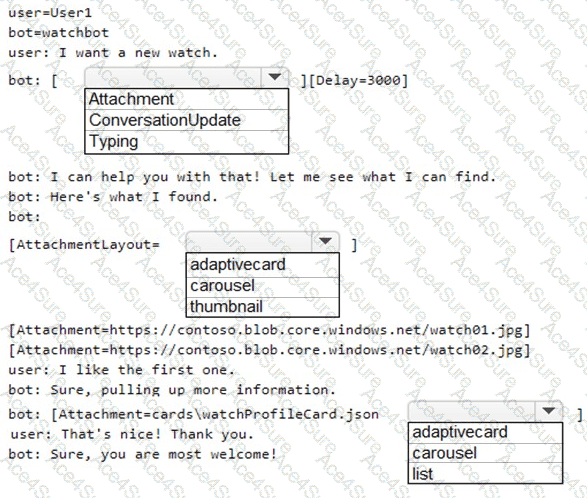
user =User1
bot=watchbot
user : I want a new watch.
bot: [Typing][Delay= 3000 ]
bot: I can help you with that! Let me see what I can find.
bot: Her e ' s what I found.
bot:
[AttachmentLayout=carousel]
[Attachment=https://contoso.blob.core.windows.net/watch01.jpg]
[Attachment=https://contoso.blob.core.windows.net/watch02.jpg]
user: I like the first one.
bot: Sure, pulling up more information.
bot: [Attachment=cards\watchProfileCard.json adaptivecard]
user: That ' s nice! Thank you.
bot: Sure, you are most welcome!
References
Bot Framework Emulator transcript ( .chat ) activities and typing indicator: Bot Framework Activity schema; Emulator supports typing and delay in transcripts.
https://learn.microsoft.com/azure/bot-service/bot-service-debug-emulator
https://learn.microsoft.com/azure/bot-service/rest-api/bot-framework-rest-connector-api-reference#activity-object
Attachment layout ( carousel / list ) for multiple attachments:
https://learn.microsoft.com/azure/bot-service/nodejs/bot-builder-nodejs-send-rich-cards#carousel-layout
Adaptive Cards in Bot Framework:
https://learn.microsoft.com/adaptive-cards/get-started/bots
https://learn.microsoft.com/azure/bot-service/bot-builder-howto-add-media-attachments#adaptive-cards